Monday, 24 October 2016

What is YUM (YellowDog Update Modifier) in centos ?


Yum (Yellowdog Update Modified) is RPM Packet Management system for Fedora, CentOS, Red Hat, OpenSuse etc. Yum history (list, info, summary, repeat, redo, undo, new) commands is added on 3.2.25 version. So this works every Linux Distros, which uses yum 3.2.25 or newer. Yum history command is a really useful in situations where the need to example rollback latest yum activity or undelete some deletes or just see what is updated lately.


11 Useful Yum Commands on CentOS Linux

Yum is the package management system that is used on CentOS Linux. It is responsible for managing packages and their dependencies from Yum repositories, as defined in /etc/yum.repos.d/
In this post, we’ll cover a few common and useful yum commands:

1. Install a yum package:

1yum install PACKAGE_NAME

2. Remove a yum package:

1yum remove PACKAGE_NAME

3. Reinstall a yum package:

1yum reinstall PACKAGE_NAME

4. Search for a yum package:

1yum search PACKAGE_NAME

5. Display the information of a yum package:

1yum info PACKAGE_NAME

6. Update installed yum packages:

1yum update

7. Update specific yum package:

1yum update PACKAGE_NAME

8. Show yum history:

1yum history

9. Show a list of enabled yum repositories:

1yum repolist

10. Find which yum package provides a particular file (eg: /usr/bin/nc):

1yum whatprovides "*bin/nc"

11. Clear yum cache:

1yum clean all

How To Reset Root Password On CentOS 7

Selection_005
3 – Go to the line of Linux 16 and change ro with rw init=/sysroot/bin/sh.

Selection_006
4 – Now press Control+x to start on single user mode.
Selection_007
5 – Now access the system with this command.
chroot /sysroot
6 – Reset the password.
passwd root
7 – Update selinux information
touch /.autorelabel
8 – Exit chroot
exit
9 – Reboot your system
reboot

Reference Link

Sunday, 23 October 2016

An Open Letter to the HPC Community

We’re releasing PBS Professional under an open source license… why?
More than 20 years ago, I was just starting my career in HPC at NASA, where, along with a great team, we developed the original PBS software. Today, PBS Professional is among the most-used technologies for HPC job scheduling. But scheduling is hard — every site has unique processes, unique goals, and unique business requirements. In fact, there are at least a dozen different software packages that are in use across the globe for HPC job scheduling, in traditional HPC centers and in both private and public clouds. A dozen? Why?
Looking back over the last couple of decades, I believe a big reason is that the HPC world is really two worlds:
  • The public sector – researchers and scientists from universities and national labs are breaking new ground and pushing the limits of HPC – natural collaborators, early adopters and risk takers, which leads to a strong preference for open source software, and
  • The private sector – engineers and businesspeople from corporations are building products and delivering services leveraging HPC as a tool for competitive advantage – natural competitors, later adopters and risk-averse, which leads to a strong preference, often a requirement, for commercial software.
Because the community is split, innovations do not easily flow from one sector to the other, and rather than advancing the state of the art, efforts are wasted re-implementing the same old capabilities again and again. This is a HUGE missed opportunity.
Altair is making a big investment toward uniting the whole HPC community to accelerate the state of the art (and the state of actual production operations) for HPC scheduling. We are dual-licensing PBS Professional®, both open source and commercial. We are opening the full core of the software, not just a weak subset or older version. We are continuing to offer a hardened, commercial version for commercial customers. We are committing to being aggressively open and community oriented. We are adding staff and reorganizing our engineering organization to behave as one of (hopefully) many contributors to the project. We are using community-accepted best practices (e.g., Github, JIRA, open discussions for new features). We are joining the OpenHPC project with PBS Pro. And, we are focused on longevity – creating a viable, sustainable community to focus on job scheduling software that can truly bridge the gap in the HPC world.
Excited? Honestly, this is one of the most exciting activities I’ve been involved in since bringing PBS Pro out of NASA in the first place. Getting the software in shape for release has required a lot of effort. We are on track for releasing open source PBS Pro 14.0 in mid-2016. It’s not only opening the source code, but also creating the tools and processes for nurturing a community – documentation, ticketing system, continuous integration tools, wikis, email lists, etc. We want to “do it right”. Of course, once we go live, I’m sure we’ll learn a great deal (from people like you), and we will work hard to best support the needs of the community.
Obviously, we cannot do this alone!
We want your input, your help; please join us as part of the PBS Pro community.
(This post originally appeared on InsideHPC on 3 May 2016.)

Wednesday, 31 August 2016

How To Compress Drive To Save Disk Space Using NTFS Compression?


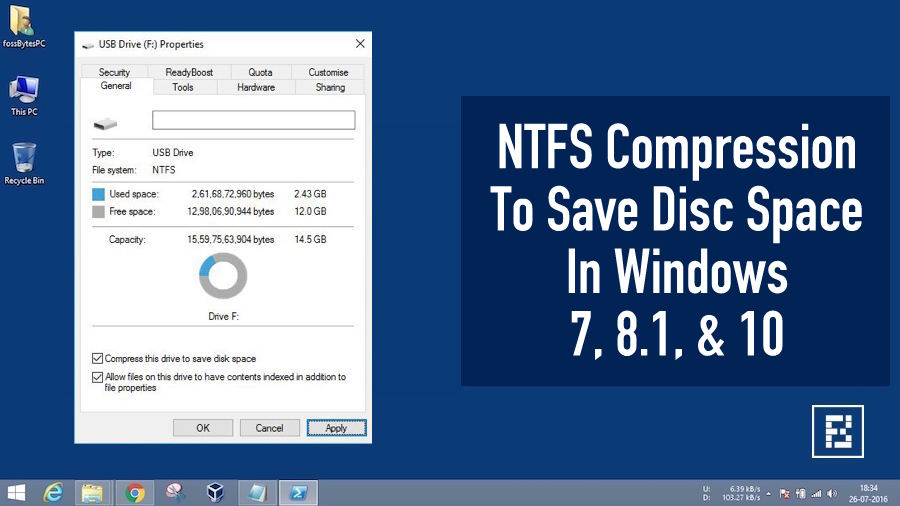
ntfs-compression-windowsShort Bytes: Microsoft Windows has abilities to compress your hard drive. The compression works for the drives formatted using the NTFS file system and for folders resting on an NTFS drive. You can also use NTFS compression on a pen drive by formatting it to NTFS.
The NTFS compression feature present in the Windows operating system comes handy when you want to squeeze your existing data to get some extra space. There are other useful methods for data compression but these require the data to be packed inside a zip or RAR file.
Shrinking files using NTFS compression will increase the workout done by your CPU while decompressing it. However, modern CPUs won’t give a sweat on this. Compressing the files won’t increase the access time. Instead, it may contribute lesser access time. This is because the files are first transferred to the RAM and then decompressed. A small-sized file could be transferred more quickly than a larger one.
An important point to be noted is that the compressions will only work for the stuff which can be compressed. This means that audio and video files, which are already compressed, won’t get shrunk considerably than the uncompressed ones like the word files and PDFs.
However, using NTFS compression on system files may not be beneficial to the health of your system. It may contribute to degradation in performance. It is not recommended to do so.

How To Compress Drive To Save Disk Space Using NTFS Compression?

The drive that needs to be compressed should be formatted to use the NTFS file system. External storage devices like USB drives are formatted using the FAT32 file system. So, you’ll have to reformat it in order to enable NTFS compression.
Here are the steps to enable NTFS compression in Windows:
  1. Open My Computer/This PC.
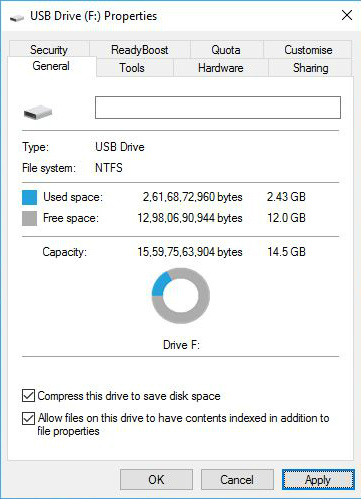
  2. Right-click the desired drive and click Properties.
  3. Tick the checkbox for Compress drive to save disk space. Click Apply.
    compress1
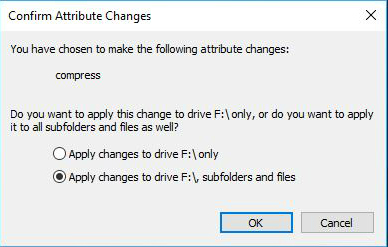
  4. Tick Apply changes to folder, subfolder, and files. Click Ok. It will take some time depending the size of your drive.
    compress2
  5. To undo NTFS compression, untick the Compress drive to save disk space check box and follow similar steps.

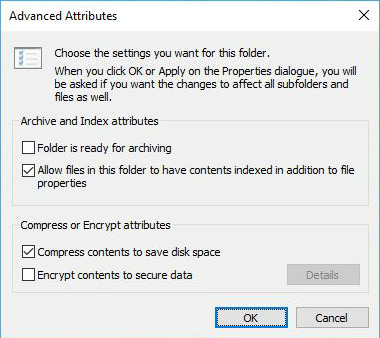
How to compress contents of a folder to save space?

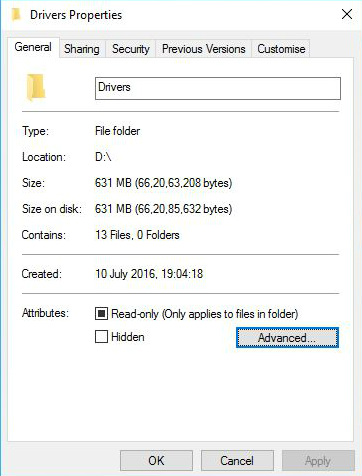
  1. Go to the Properties of that folder.
  2. Click Advanced.
    compress3
  3. Tick Compress contents to save disk space.
    compress4
  4. Click Apply changes to this folder, sub folders and files. Click Ok.
  5. To undo NTFS compression, follow similar steps and untick Compress contents to save disk space.
Using NTFS compression to compress drives won’t drastically reduce your disk size. But it is good in the situations when you are out of space and want to store some important data, and also for keeping the files which you don’t use very often.
If you have something to add, tell us in the comments below.\

Reference Link:
http://fossbytes.com/how-to-compress-drive-to-save-disk-space-using-ntfs-compression/


How to install google-chrome in redhat without redhat subscription

Install google-chrome in redhat  Download the .rpm file of chrome https://www.google.com/chrome/thank-you.html?installdataindex=empty&st...