Showing posts with label Fundamental. Show all posts

Wednesday, 31 August 2016

How To Compress Drive To Save Disk Space Using NTFS Compression?
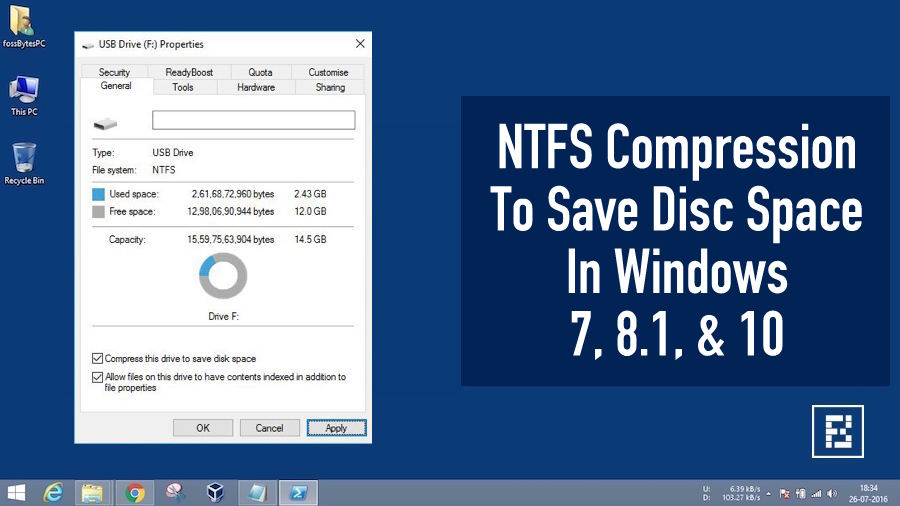


ntfs-compression-windowsShort Bytes: Microsoft Windows has abilities to compress your hard drive. The compression works for the drives formatted using the NTFS file system and for folders resting on an NTFS drive. You can also use NTFS compression on a pen drive by formatting it to NTFS.
The NTFS compression feature present in the Windows operating system comes handy when you want to squeeze your existing data to get some extra space. There are other useful methods for data compression but these require the data to be packed inside a zip or RAR file.
Shrinking files using NTFS compression will increase the workout done by your CPU while decompressing it. However, modern CPUs won’t give a sweat on this. Compressing the files won’t increase the access time. Instead, it may contribute lesser access time. This is because the files are first transferred to the RAM and then decompressed. A small-sized file could be transferred more quickly than a larger one.
An important point to be noted is that the compressions will only work for the stuff which can be compressed. This means that audio and video files, which are already compressed, won’t get shrunk considerably than the uncompressed ones like the word files and PDFs.
However, using NTFS compression on system files may not be beneficial to the health of your system. It may contribute to degradation in performance. It is not recommended to do so.

How To Compress Drive To Save Disk Space Using NTFS Compression?

The drive that needs to be compressed should be formatted to use the NTFS file system. External storage devices like USB drives are formatted using the FAT32 file system. So, you’ll have to reformat it in order to enable NTFS compression.
Here are the steps to enable NTFS compression in Windows:
  1. Open My Computer/This PC.
  2. Right-click the desired drive and click Properties.
  3. Tick the checkbox for Compress drive to save disk space. Click Apply.
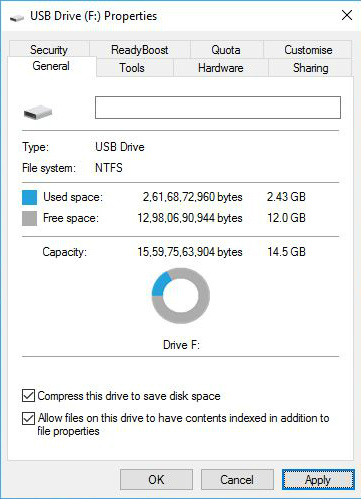
    compress1
  4. Tick Apply changes to folder, subfolder, and files. Click Ok. It will take some time depending the size of your drive.
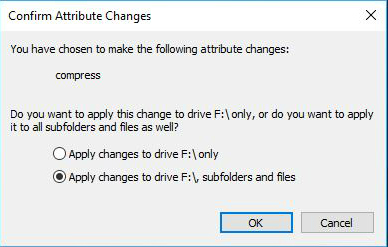
    compress2
  5. To undo NTFS compression, untick the Compress drive to save disk space check box and follow similar steps.

How to compress contents of a folder to save space?

  1. Go to the Properties of that folder.
  2. Click Advanced.
    compress3
  3. Tick Compress contents to save disk space.
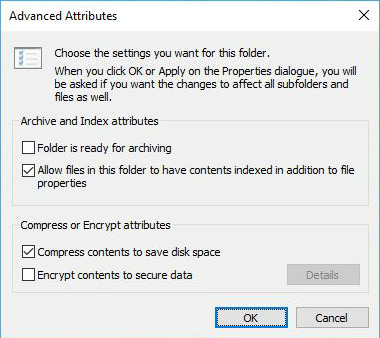
    compress4
  4. Click Apply changes to this folder, sub folders and files. Click Ok.
  5. To undo NTFS compression, follow similar steps and untick Compress contents to save disk space.
Using NTFS compression to compress drives won’t drastically reduce your disk size. But it is good in the situations when you are out of space and want to store some important data, and also for keeping the files which you don’t use very often.
If you have something to add, tell us in the comments below.\

Reference Link:
http://fossbytes.com/how-to-compress-drive-to-save-disk-space-using-ntfs-compression/


Dynamic Programming - Making Change Problem C Code


Dynamic Programming & making Change :

Dynamic programming algorithms are often used for optimization. A dynamic programming algorithm will examine the previously solved subproblems and will combine their solutions to give the best solution for the given problem. In comparison, a greedy algorithm treats the solution as some sequence of steps and picks the locally optimal choice at each step. Using a greedy algorithm does not guarantee an optimal solution, because picking locally optimal choices may result in a bad global solution, but it is often faster to calculate. Fortunately, some greedy algorithms (such as Kruskal's or Prim's for minimum spanning trees) are proven to lead to the optimal solution.
For example, in the coin change problem of finding the minimum number of coins of given denominations needed to make a given amount, a dynamic programming algorithm would find an optimal solution for each amount by first finding an optimal solution for each smaller amount and then using these solutions to construct an optimal solution for the larger amount. In contrast, a greedy algorithm might treat the solution as a sequence of coins, starting from the given amount and at each step subtracting the largest possible coin denomination that is less than the current remaining amount. If the coin denominations are 1,4,5,15,20 and the given amount is 23, this greedy algorithm gives a non-optimal solution of 20+1+1+1, while the optimal solution is 15+4+4..

C Coding for making Change : -

#include<iostream>
#define Infinite 10000
using namespace std;
int main()
{
    cout << "Total Number of COinS : ";
    int noC;
    cin >> noC;
    int Coin[noC];
    for(int i=0;i<noC;i++)
    {
        cout << "Enter Value of " << i+1 << " Coin :";
        cin >> Coin[i];
    }
    cout << "Enter Amount : ";
    int amount ;
    cin >> amount ;
    int dynamicArr[amount+1][noC+1];
    for(int i=0;i<=noC;i++)
    {
        for(int j=0;j<=amount;j++)
        {
            if(j==0)
            {
                dynamicArr[i][j] = 0;
            }
            else if(i==0)
            {
                dynamicArr[i][j] = Infinite;
            }
            else if()

                /*WIll be Uploaded SOon OR Try by urself*/
        }
    }

}

Tuesday, 2 August 2016

What is COW(Copy On Write) in Linux ?

Copy-on-write in LINUX -OS


Copy-on-write (sometimes referred to as "COW"), sometimes referred to as implicit sharing, is an optimization strategy used in computer programming. Copy-on-write stems from the understanding that when multiple separate tasks use initially identical copies of some information (i.e., data stored in computer memory or disk storage), treating it as local data, each task working on its own "copy of the data", that they may occasionally need to modify, then it is not necessary to immediately create separate copies of that information for each task. Instead they can all be given pointers to the same resource, with the provision that on the first occasion where they need to modify the data, only then must they first create a local copy on which to perform the modification (the original resource remains unchanged). By sharing resources this way it is possible to make significant resource savings in cases there are many separate processes all using the same resource, each with a small likelihood of having to modify it at all. Copy-on-write is the name given to the policy that whenever a task attempts to make a change to the shared information, it should first create a separate (private) copy of that information to prevent its changes from becoming visible to all the other tasks. If this policy is enforced by the operating system kernel, then the fact of being given a reference to shared information rather than a private copy can be transparent to all tasks, whether they need to modify the information or not.[1]

Copy-on-write filesystem

To address the problems associated with existing disk filesystems, the Power-Safe filesystem never overwrites live data; it does all updates using copy-on-write (COW), assembling a new view of the filesystem in unused blocks on the disk. The new view of the filesystem becomes "live" only when all the updates are safely written on the disk. Everything is COW: both metadata and user data are protected.
To see how this works, let's consider how the data is stored. A Power-Safe filesystem is divided into logical blocks, the size of which you can specify when you use mkqnx6fs to format the filesystem. Each inode includes 16 pointers to blocks. If the file is smaller than 16 blocks, the inode points to the data blocks directly. If the file is any bigger, those 16 blocks become pointers to more blocks, and so on.
The final block pointers to the real data are all in the leaves and are all at the same level. In some other filesystems—such as EXT2—a file always has some direct blocks, some indirect ones, and some double indirect, so you go to different levels to get to different parts of the file. With the Power-Safe filesystem, all the user data for a file is at the same level.
If you change some data, it's written in one or more unused blocks, and the original data remains unchanged. The list of indirect block pointers must be modified to refer to the newly used blocks, but again the filesystem copies the existing block of pointers and modifies the copy. The filesystem then updates the inode—once again by modifying a copy—to refer to the new block of indirect pointers. When the operation is complete, the original data and the pointers to it remain intact, but there's a new set of blocks, indirect pointers, and inode for the modified data:
This has several implications for the COW filesystem:
  • The bitmap and inodes are treated in the same way as user files.
  • Any filesystem block can be relocated, so there aren't any fixed locations, such as those for the root block or bitmap in the QNX 4 filesystem
  • The filesystem must be completely self-referential.
superblock is a global root block that contains the inodes for the system bitmap and inodes files. A Power-Safe filesystem maintains two superblocks:
  • a stable superblock that reflects the original version of all the blocks
  • a working superblock that reflects the modified data
The working superblock can include pointers to blocks in the stable superblock. These blocks contain data that hasn't yet been modified. The inodes and bitmap for the working superblock grow from it.
snapshot is a consistent view of the filesystem (simply a committed superblock). To take a snapshot, the filesystem:
  1. Locks the filesystem to make sure that it's in a stable state; all client activity is suspended, and there must be no active operations.
  2. Writes all the copied blocks to disk. The order isn't important (as it is for the QNX 4 filesystem), so it can be optimized.
  3. Forces the data to be synchronized to disk, including flushing any hardware track cache.
  4. Constructs the superblock, recording the new location of the bitmap and inodes, incrementing its sequence number, and calculating a CRC.
  5. Writes the superblock to disk.
  6. Switches between the working and committed views. The old versions of the copied blocks are freed and become available for use.
To mount the disk at startup, the filesystem simply reads the superblocks from disk, validates their CRCs, and then chooses the one with the higher sequence number. There's no need to run chkfsys or replay a transaction log. The time it takes to mount the filesystem is the time it takes to read a couple of blocks

For More Reference :
http://www.cis.upenn.edu/~jms/cw-fork.pdf

Friday, 10 June 2016

What is NAT(Network Address Translation) with Example ?


Network Address Translation (NAT) -


It’s known that NAT (Network Address Translation) can ensure security since each outgoing or incoming request must go through a translation process that offers the opportunity to qualify or authenticate the request or match it to a previous request. NAT also conserves on the number of global IP addresses that a company needs and it lets the company use a single IP address in its communication with the world.
There are some other sticky network problems that need NAT (Benefit of NAT)
Static or dynamic translation
We’ve already mentioned that NAT cures duplicate address ranges without readdressing host computers. The translation done by NAT can be either static or dynamic. Static translation is where we specify a lookup table, and one inside address is turned into one pre-specified outside address. Dynamic is where we tell the NAT router what inside addresses need to be translated, and what pool of addresses may be used for the outside addresses. There can be multiple pools of outside addresses. ICMP host unreachable messages are used when addresses run out.
Port multiplexing
With NAT, multiple internal hosts can also share a single outside IP address, which conserves address space. This is done by port multiplexing: changing the source port on the outbound packet so that replies can be directed back to the appropriate machine.
Load distribution
You can also do load distribution via NAT: have one external address (perhaps your Web server’s name, www.cisco1900router.com, maps to this address). Then round-robin between different inside machines, so that incoming new connections are distributed across several machines. (Since each connection may involve state information, a given connection has to remain on one machine.)
Readdressing
Organizations that change service providers are now typically not allowed to take their address with them (because exceptions to CIDR addressing blocks have become a problem). NAT solves this by allowing re-addressing to occur at the gateway, allowing time to convert internal hosts to the new network number.
Additionally, NAT also enhances security—internal network topology and addresses are hidden from the outside world. The only thing NAT really can’t do much about is sloppily-written applications, with hard-coded raw IP addresses.

Disadvantages of NAT
Address translation is not practical for large numbers of internal hosts all talking at the same time to the outside world. NAT just won’t work well at a large scale.
Besides, performance may be a consideration. Currently, NAT only runs on Cisco 7500 routers with the RSP. Even there, NAT causes process switching on its configured interfaces. You can think of this as if the CPU has to look at every packet, deciding whether or not to translate it, and whether to alter the IP header, or possibly the TCP header. One doubts that this will be easily cache-able.
For more Reference :

Friday, 6 May 2016

How to Allocate Or De-allocate VM-Virtual Memory in Windows 7,8,8.1,10?


    In computingvirtual memory is a memory management technique that is implemented using both hardware and software. It mapsmemory addresses used by a program, called virtual addresses, into physical addresses in computer memory. Main storage as seen by a process or task appears as a contiguous address space or collection of contiguous segments. The operating system manages virtual address spaces and the assignment of real memory to virtual memory. Address translation hardware in the CPU, often referred to as a memory management unit or MMU, automatically translates virtual addresses to physical addresses. Software within the operating system may extend these capabilities to provide a virtual address space that can exceed the capacity of real memory and thus reference more memory than is physically present in the computer.
    The primary benefits of virtual memory include freeing applications from having to manage a shared memory space, increased security due to memory isolation, and being able to conceptually use more memory than might be physically available, using the technique of paging
    How to Allocate VM?
  • Step - 1: Right Click on My computer and Open Properties.
  • Step - 2: Click on Advance System Settings.
  • Step - 3: Click on Setting and followed By Advanced option as Shown in Following Image.
     
  • Step - 4:There you find virtual memory and Click on change to modify or allocate.


It's Done.

What is DEP - DATA EXECUTION PREVENTION ?


Data Execution Prevention (DEP) is security feature that first introduced in Windows XP Service Pack 2 (SP2) and is included in Windows XP Tablet PC Edition 2005, Windows Server 2003 Service Pack 1 (SP1) and Windows Vista, plus future operating system such as Windows 7Windows 8,Windows 8.1 and Windows 10. DEP is intended to prevent an application or service from executing code from a non-executable memory region. DEP is enforced by hardware technology that detects code that is running from the default heap and the stack and raises an exception to terminate the process when execution occurs, and software-enforcer that prevent malicious code from taking advantage of exception-handling mechanisms in Windows. In short, DEP perform additional checks on memory to prevent malicious code or exploits from running on the system by shut down the process once detected.


Why Disable DEP ?

I was running multiple processes on different tabs in Firefox 3,  finally my Firefox crashed and Microsoft gave a very beautiful reason for the crash which you have read above. Actually it happened the moment I clicked on a YouTube video, it sounds weird, right? If you are a heavy geek like me, who works on multiple Firefox tabs and also use online services that need to access your system memory, then your Firefox is definitely going to crash unless you don’t disable DEP. Another reason to disable it is when it does not allow you to open Executable files that needs to access your system memory.
Note: Only disable DEP if your executable file is not getting installed or if your Firefox is crashing all the time(and Microsoft keeps giving DEP excuse).

How To Disable DEP ?

Go to Start, right click on Computer and finally click on Properties. Now in the System window click onAdvanced System Settings in the left sidebar as shown in the screenshot below.
vista system

Now in the System Properties Windows, under Performance click Settings as shown in the screenshot below.
System properties
Finally in the Performance Options windows, navigate to Data Execution Prevention tab and select the second option “Turn on DEP for all programs and services except those I select:” as shown in the screenshot below.
performance option
Now suppose you have to disable DEP for some executable file, just click on Add, and then select the file to add it in the list and you are done. ðŸ™‚
Well you can’t add Firefox because it is not an executable file, but it pretty much solved my problem.

Alternative Method – Disabling DEP Completely From Command Prompt

Warning: Do not use this option if you are not an administrator. Make sure that you fully understand what you are doing.
From the Start menu, select All Programs, then go to Accessories and then finally right-click on Command Prompt and click Run as Administrator(Or Disable User Account Control).
Once the command prompt is open, you can now disable the DEP by entering the following command line.

bcdedit.exe /set {current} nx AlwaysOff
If you regret your decision and now wants to enable or turn back on the DEP protection for your Windows, simply use the following command instead:
bcdedit.exe /set {current} nx OptIn
Or (above is the default setting on Windows, and below command will apply DEP to all processes):
bcdedit.exe /set {current} nx AlwaysOn
How to Verify the Status of DEP
Run the Command Prompt as Administrator, the run the following command:
wmic OS Get DataExecutionPrevention_SupportPolicy
A status code will be returned. The status of the DEP is corresponding with the code listed in table below:

Code NumberFlagStatus
AlwaysOffDEP is disabled for all processes.
1AlwaysOnDEP is enabled for all processes.
2OptInDEP is enabled for essentials Windows programs and services only. Default setting.
3OptOutDEP is enabled for all processes except for excluded programs and services.
Reference Link:

How to install google-chrome in redhat without redhat subscription

Install google-chrome in redhat  Download the .rpm file of chrome https://www.google.com/chrome/thank-you.html?installdataindex=empty&st...